Faces found, objects tracked
Find faces automatically, or track any plate, logo or screen as it moves, all on your device. Nothing is uploaded.
Free · runs in your browser
Pixelate, blur or black out faces, licence plates and screens in a video or a photo. Faces are found automatically and followed as they move. Free, no upload, no watermark.

Or pick one from your computer. Faces are found right here, offline. Photos work too.Pick the clip from your photos or files.
Works with MP4MOVWebMJPEGPNGand more
Faces are found and blurred on your device. Nothing is uploaded.
Find faces automatically, or track any plate, logo or screen as it moves, all on your device. Nothing is uploaded.
Cover the whole video or photo, or any number of boxes, ovals, brush strokes and censor bars, each with its own look.
No watermarks, no signup, and no length or file size limit.
Video guide
Chapters
How it works
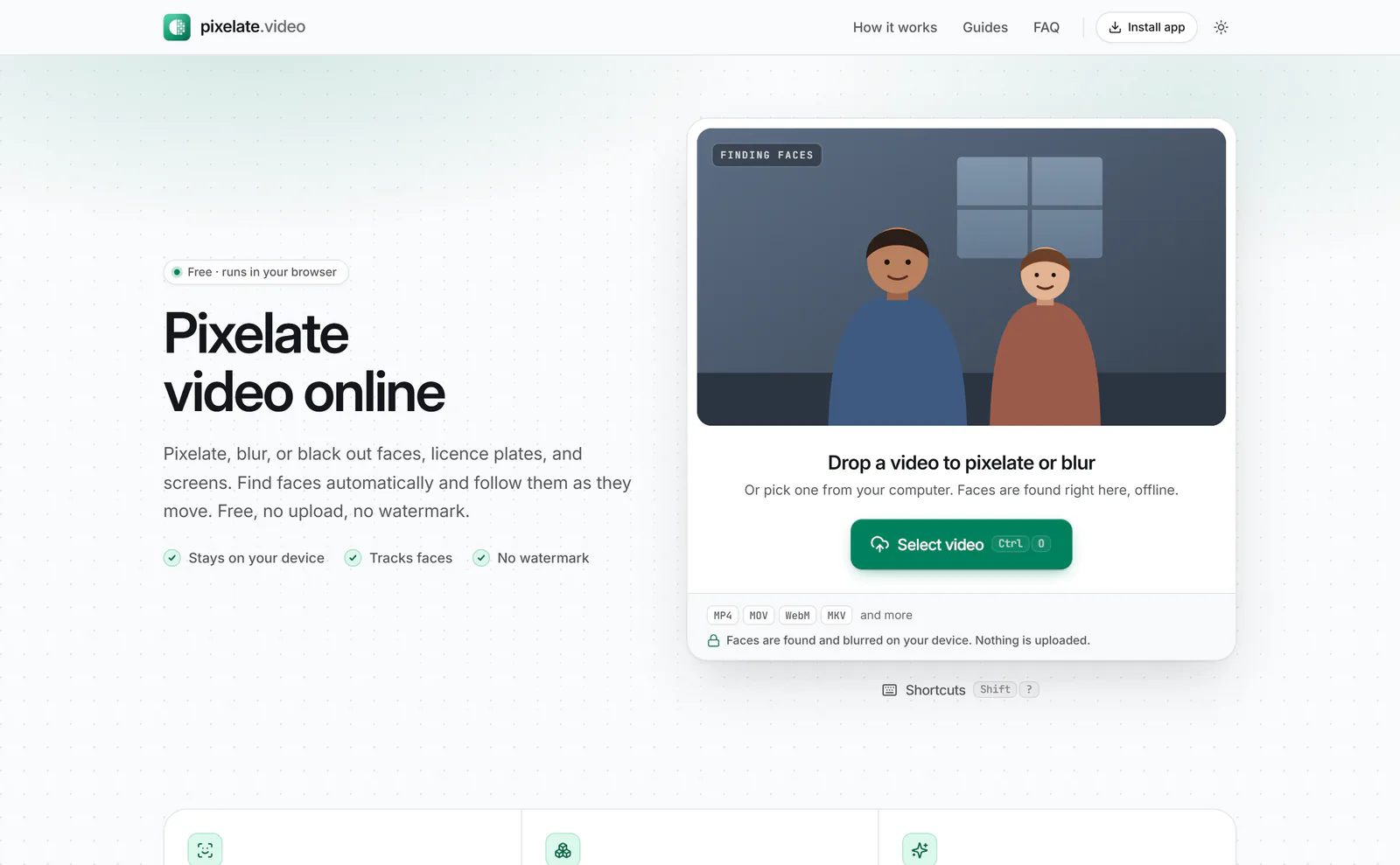
Drag in any common video file (MP4, WebM, MOV and MKV work well) or a photo (JPEG, PNG, WebP or iPhone HEIC).
 (enlarge image)
Click Select video, or drag the file onto the upload card.
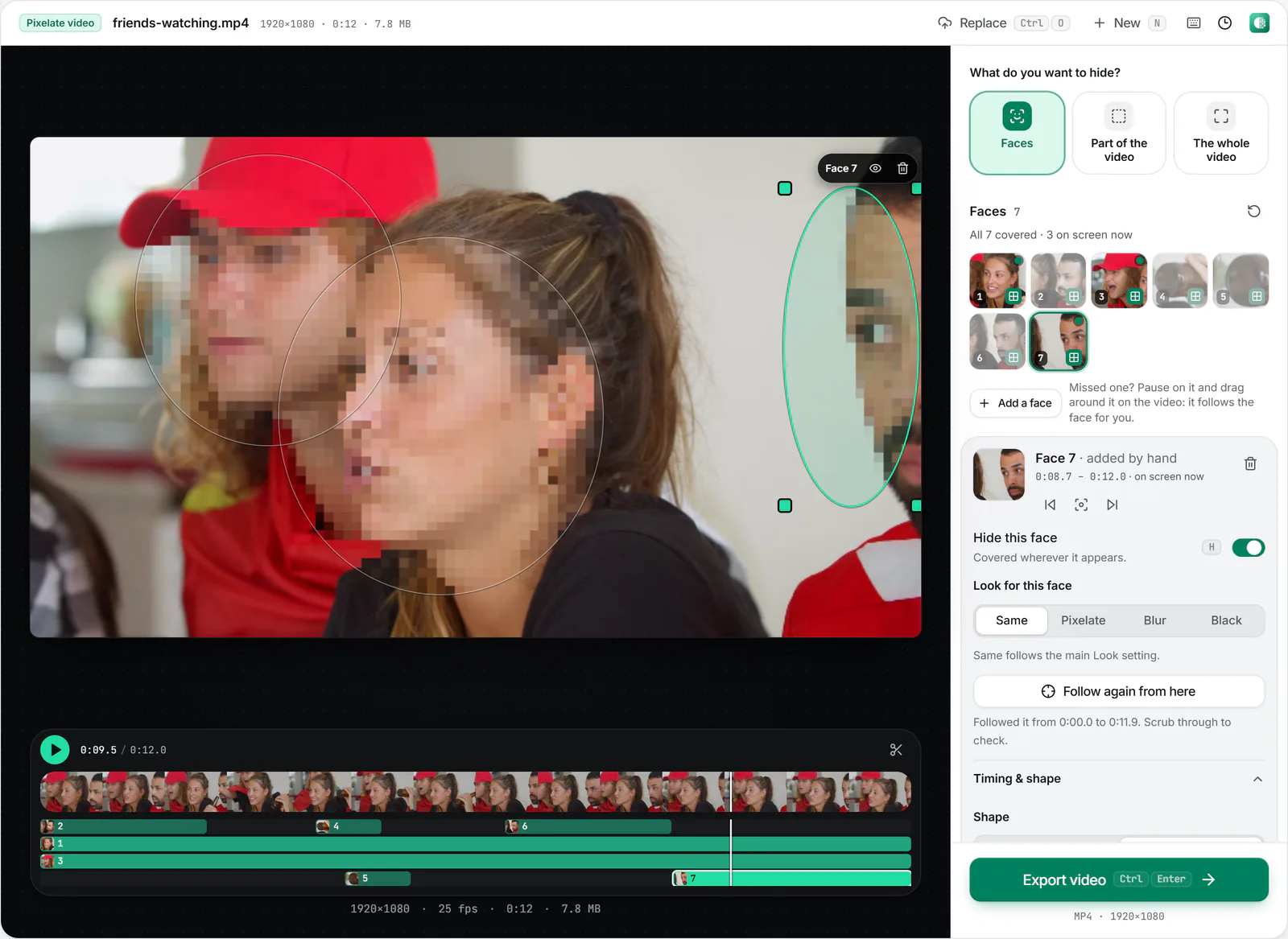
Pixelate or blur the whole video, find faces automatically, or drag on the video to draw boxes over faces, number plates, or screens. Set when each one starts and ends, and use Track movement automatically (or Follow movement by hand) for anything that moves.
 (enlarge image)
Choose Faces and each face gets a pixelated oval that follows the person. Missed one? Pause on it and drag around it on the video (here Face 7): it is added to Faces and followed for you.
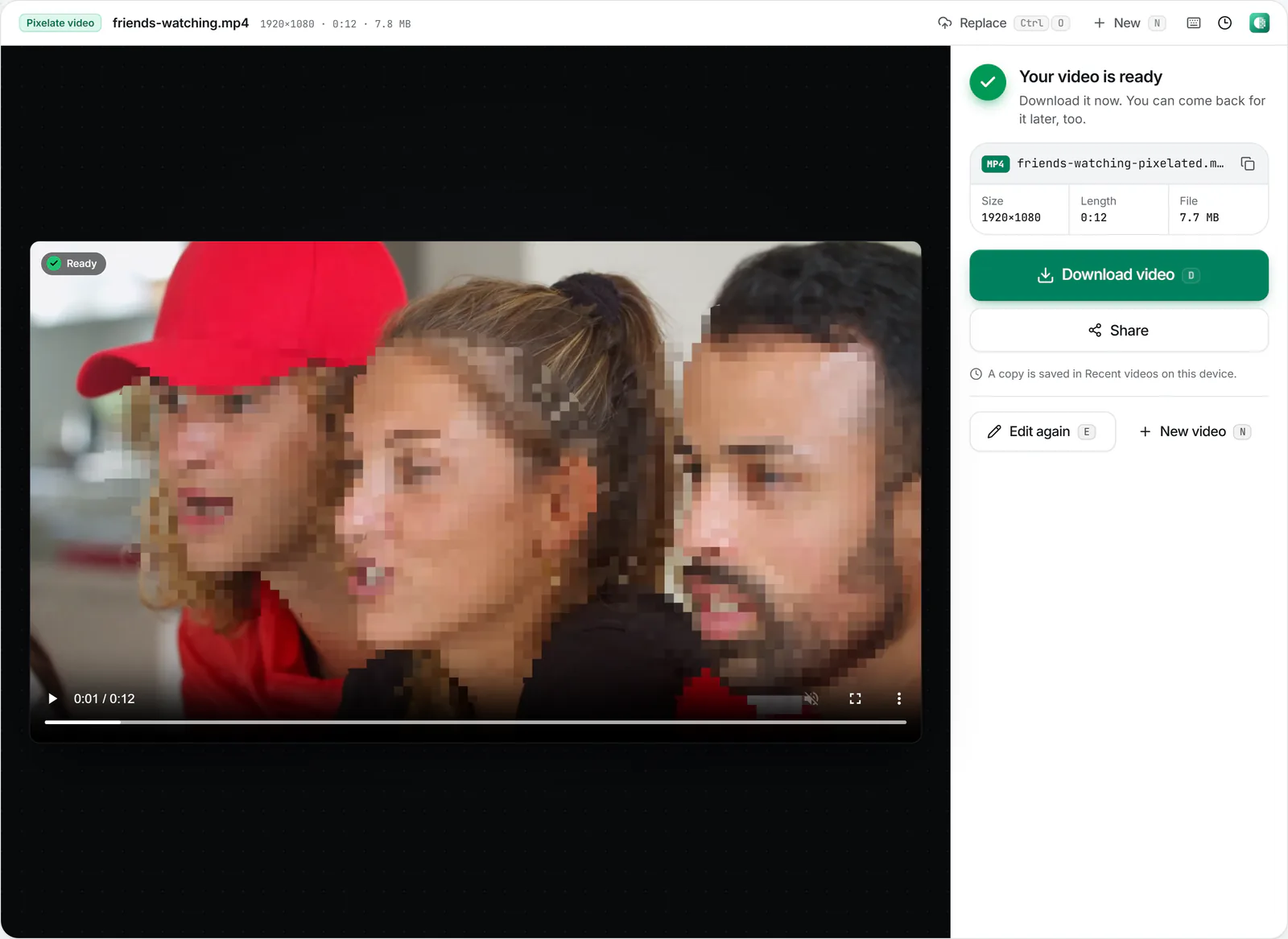
Select Export video, then Download video. It is rendered in your browser as MP4 or WebM, with the sound kept (or removed if you prefer).
 (enlarge image)
After Export video, click Download video.
Guides
Photos too
Drop a JPEG, PNG, WebP or iPhone HEIC photo into the same editor and you get the same mosaic, blur and black box, plus a brush and one-click censor bars. Faces are found in the picture on your device, and the saved copy is full size and carries no location or camera details.
Faces are found and tracked on your device, and nothing is uploaded. The guides above cover faces, plates, iPhone and more.
Open your video above and choose The whole video, Faces, or Part of the video. Faces are found and covered for you; for part of the video, drag on it to draw a box. Pick Pixelate, Blur, or Black box under Look, then select Export video to download it.
No. Pixelation and face finding run entirely in your browser using WebCodecs, the open-source mediabunny library, and an on-device face detector. Your file never leaves your device.
It is free, with no watermark, no signup, and no fixed length or file size limit. Browser memory and device speed set the practical ceiling.
Yes. Drop a JPEG, PNG, WebP or iPhone HEIC photo into the same editor. You get the same Faces, Part of the photo and The whole photo choices, then Export photo saves a full-size JPEG, PNG or WebP with no location or camera details in it. Separate photo guides cover faces, censor bars and number plates.
Yes. Choose Faces and the face finder starts on its own. Each face it finds becomes an oval that follows the person through the video. Very small, distant, or turned-away faces can be missed, so scrub through and add an area for any it skipped.
Draw an area over it, then select Track movement automatically: the area follows the object (a number plate, logo, screen, or face) through the video, on your device. If it loses track, go to that moment, move the area back onto it, and track again. You can also place it yourself with Follow movement by hand, and faces found automatically follow the person already.
Yes. Add as many areas as you need with Add box, Add censor bar or the brush, or by dragging on the video. Each one can have its own shape, start and end time, and its own look under Look for this area.
Yes. Select an area, open Timing & shape, move the playhead, and press Starts here and Ends here (or the [ and ] keys). The area only appears between those times. To cut the video itself, use the scissors under the preview.
Black box is the safest because nothing of the original remains. Large pixel blocks are next. Light blur or very small blocks can leave faces and text recognisable, so use a strong setting (around 20 px or more) for anything sensitive.
Pixelation throws detail away, so it cannot be undone exactly. Weak pixelation of text or a familiar face can still be guessed, though, so use larger blocks or Black box for passwords, plates, and IDs.
Choose Part of the video, drag a box over it, and pick Black box or a large block size. If it moves, select Track movement automatically and the box follows it.
Yes. Draw an area over the person (or find their face), then turn on the "everything except the boxes" switch under More options. The rest of the frame is pixelated or blurred.
Only the areas you cover change. The rest of the picture is re-encoded at a high bitrate so it stays very close to the original. Under Export settings you can pick a smaller size or file if you prefer.
Yes. The sound is kept (in MP4 exports it is normally copied through unchanged), or you can turn off Keep sound under Export settings to remove it.
Yes, in modern mobile browsers such as Safari and Chrome. Exporting long or 4K videos is faster on a computer.
MP4, MOV, WebM and MKV videos open directly. Older or less common ones, such as AVI, WMV, MPEG and camcorder MTS files, are converted on your device first. Photos can be JPEG, PNG, WebP, AVIF or iPhone HEIC. Nothing is uploaded. You can download the result as MP4, or WebM in browsers that support it.